Blog
How to find out where a photo was taken
If a photo was taken on a phone with location turned on, the coordinates are almost certainly still inside the file — you just have to know where to look. Here are four ways to get them out, and what to do when they are not there at all.
First: the location may already be gone
GPS coordinates live in the photo’s EXIF metadata (the published standard), and that metadata is fragile. It survives being copied. It does not survive much else.
- WhatsApp, Instagram, Facebook, X and most messaging apps strip location — usually the whole EXIF block — on upload.
- A screenshot of a photo has no metadata at all; it is a new image.
- Some phones drop location when you share from the Photos app.
- Photos taken with Location Services off for the Camera app never had it.
So if the photo came from somebody else, assume the location is gone until you have actually checked.
Four ways to read it
Do these in order. The first one costs nothing and often ends the search before you open a single tool.
- Start with the source, not the tool If the photo arrived through a messenger, a social app or a screenshot, assume the location is already gone. Check that before you spend time on a viewer.
- On iPhone, swipe up Open the photo in the Photos app and swipe up, or tap the info button. A map or an address means the coordinates survived; nothing there means they did not.
- On a desktop, open the file’s properties macOS: Preview, then Command-I. Windows: right-click, Properties, Details, then the GPS group. This reads the file itself, not a photo library’s guess.
- For the full picture, use exiftool It prints every tag in the file, which no system dialog does. exiftool -GPSLatitude -GPSLongitude -DateTimeOriginal photo.jpg
- If the data is gone, stop looking for a better reader No tool recovers coordinates that were stripped out. From there it is inference from what is visible in the frame, or nothing.
1. iPhone Photos
Open the photo, then swipe up or tap the info button — Apple documents the swipe-up as the place this information lives (See photo and video information on iPhone). If there is a location you will see a small map or an address line beneath it, and tapping the map opens it full screen. The date, time and camera details are listed below that.
Only pictures and videos that have embedded location information (GPS data) are included.
Apple, iPhone User Guide — Browse photos by location on iPhone
2. Google Photos
Open the photo and swipe up. The details panel shows the location on a map if one exists, plus the file name, date and device. On the web the same information sits in the info panel on the right.
3. On a computer
On macOS, open the photo in Preview and press Command-I, or use Get Info in Finder; both show a GPS section. On Windows, right-click the file, choose Properties → Details, and scroll to the GPS group.
If you want everything the file knows, exiftool is the standard tool, and it reads far more than the OS dialogs show:
exiftool -GPSLatitude -GPSLongitude -DateTimeOriginal photo.jpgIt runs on macOS, Linux and Windows.
4. Online EXIF viewers — read the warning first
There are websites that will parse a photo’s metadata for you. They work and they are convenient. They also mean uploading the photo you are investigating to somebody else’s server, which is a strange thing to do with a photo whose location you are trying to keep private. Use them for photos you do not care about; for anything sensitive, use a local tool.
When the GPS is missing and nothing will bring it back
If the coordinates were stripped, they are gone. No tool recovers them from the pixels — there is no reverse lookup from a picture back to a place, whatever a film taught you.
What you can still do is narrow it down from what the photo shows: a shopfront, a street sign, the language on a sign, the angle of the sun. That is detective work rather than metadata, and it is usually how these things actually get resolved.
Make the next photo carry the place itself
The reliable fix is not a better reader. It is a photo that describes itself. If the address and coordinates are printed into the image at the moment you take it, then it does not matter what the next messaging app does to the metadata — the information travels with the pixels.
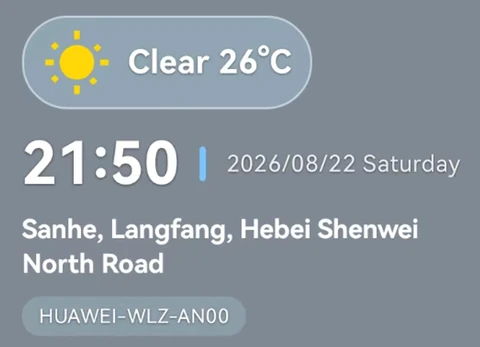
StampCam stamps time, address, GPS coordinates, weather, altitude and notes onto photos and videos as they are captured, on your device. It is free on iOS and Android.
That is the whole argument for a watermark camera. Metadata is a record you can lose; a stamp is part of the picture.
Questions
How can I find the location of a photo on my iPhone?
Why does my photo have no location data?
Can I recover deleted GPS data from a photo?
How do I make sure my photos always record the location?
Sources
Every external source this article cites, with the link it was read from. None of them is a page about our own app.